VocalForge User Manual
Version: 0.1.1 Early Access - updated 19 August 2026
Publisher: Sublab Ventures Ltd
Product: VocalForge
What VocalForge Is
VocalForge is a local-first vocal extraction workstation for Windows and Apple Silicon macOS. It is designed for producers and engineers who need more than a quick vocal remover: lead vocal extraction, backing-vocal recovery, clean instrumentals, bleed cleanup, preview, quality control and audited export.
For normal users, VocalForge opens in Simple mode. Advanced mode is still available when you need the full routing, stem-mining and repair workspace.
VocalForge is the first publicly available Forge app. MidiForge, DrumForge, MasterForge, SampleForge and other Forge tools are in development.
Best Route Summary
For most producer sessions:
- Import the source track.
- Run analysis.
- Stay in Simple mode if you want the shortest path.
- Run extraction from the guided workflow.
- Preview the vocal or instrumental candidate.
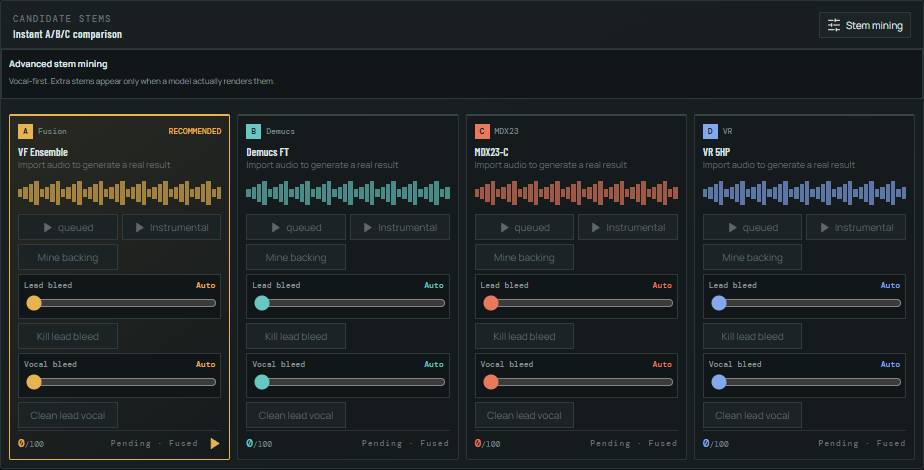
- If backing vocals remain inside the instrumental, switch to Advanced mode and use backing-vocal mining.
- If lead vocal bleed remains in recovered backing vocals, use leadprint or lead-bleed cleanup.
- Confirm Settings > Install readiness shows the runtime and required model packs are ready.
- Export that selected stem with manifest/QC report enabled.
Recommended Models and Routes
Clean Lead Vocal
Use a strong lead/instrumental model first. VR 5HP is a recommended first route when the track has clear lead vocal structure. If the vocal has instrumental bleed, use the clean-lead workflow after separation.
Backing Vocals
The best route for backing vocals is usually:
- Use VR 5HP to create lead vocal and instrumental sides.
- Treat the instrumental side as a candidate source.
- Run backing-vocal mining on the instrumental side.
- Preview recovered backing vocals.
- Use leadprint suppression only if lead bleed is audible.
This works because some models leave backing vocals inside the instrumental. VocalForge treats that as recoverable signal rather than failure.
Clean Instrumental
Start with the best instrumental candidate, then compare it against mined/recovery outputs. Use cleanup or suppression only when the instrumental still contains audible vocal residue.
Installing VocalForge
Download VocalForge only through the official SVForge download page. The Windows and macOS packages use the same SVForge licence, but the installers and bundled runtimes are platform-specific.
Windows 10 Or 11
- Download the Windows full installer ZIP.
- Extract the complete ZIP before running setup.
- Run the setup executable and follow the installer prompts.
- Launch VocalForge from the Start menu or desktop shortcut.
- If Windows SmartScreen appears for this Early Access build, confirm that the package came from the official SVForge page before continuing.
Apple Silicon macOS
The macOS 0.1.1 build requires an Apple Silicon Mac (M1 or newer) running macOS 13 Ventura or newer. Intel Macs are not supported by this DMG.
- Download
Vocalforge_Release 0.1.1.zipfrom the official SVForge download page. - Extract the ZIP, then open the included
VocalForge_0.1.1_aarch64.dmg. - Move VocalForge to the Applications folder.
- Eject the VocalForge disk image.
- Open VocalForge from Applications.
- If macOS blocks the first launch, confirm that you downloaded the release from SVForge, then use System Settings > Privacy & Security > Open Anyway. Do not disable Gatekeeper globally.
- Allow access to selected audio files or folders when macOS requests it. VocalForge does not require microphone access for file-based processing.
This is an ad-hoc signed Early Access build and notarization was not independently verified in the SVForge release workspace. Treat unexpected security prompts, changed filenames or checksum mismatches as a reason to stop and contact support.
First Launch And Install Readiness
Recommended customer route:
- Install VocalForge.
- Launch the app.
- Sign in or enter a VocalForge licence key.
- Let VocalForge scan the machine.
- Open Settings > Install readiness.
- Download required model packs from Settings if any routes are missing.
- Advanced users can verify the platform model folder:
Windows: %USERPROFILE%\.vocalforge\models
macOS:   ~/Library/Application Support/audio.vocalforge.workstation/models
- Click Verify after install.
Each platform package contains the desktop app, licence activation, its matching local backend runtime and FFmpeg tools. Settings reports which model routes are installed and ready.
Simple mode is the default layout after launch, so most users can start with import, extraction, preview and export immediately.
First-Run Machine Optimiser
On first launch, VocalForge scans:
- logical CPU threads
- total and available RAM
- supported accelerator availability (NVIDIA CUDA on Windows or Apple Metal on macOS)
- available accelerator memory where the platform reports it
It then applies a one-time recommended profile for the machine:
- Lower-powered safe: fast route, conservative RAM use, 44.1 kHz default.
- Standard studio: balanced route, 48 kHz default, balanced RAM assist.
- Performance: stronger RAM assist for 32 GB+ memory or a supported accelerator.
- Workstation: quality route and high RAM assist for high-memory systems with strong CUDA or Apple Silicon performance.
Settings > First run optimiser can re-scan and re-apply the recommended profile.
Main Workflow
1. Import
Import a track from the queue/import page. VocalForge creates preview assets and prepares the file for local processing.
Supported target use:
- WAV/FLAC style production sources where possible
- full songs or stems
- vocal-heavy records
- tracks where backing vocals are difficult to isolate manually
2. Analyse
Analysis prepares tempo, sample-rate, preview and issue-detection information. Use this before committing to deeper model routes.
3. Separate
Choose the workflow mode:
- Simple mode: the default path for normal users. Import, extract, preview and export with the least setup.
- Advanced mode: the full workstation view with routing, stem mining and repair controls visible up front.
If you want the shortest route, stay in Simple mode. If you need to compare candidates, mine backing vocals or tune repair controls directly, switch to Advanced mode.
4. Compare / QC
Use Compare/QC to listen between candidates. Scores are useful only when marked as live signal/render values. Pending or demo-style labels should not be treated as final proof.
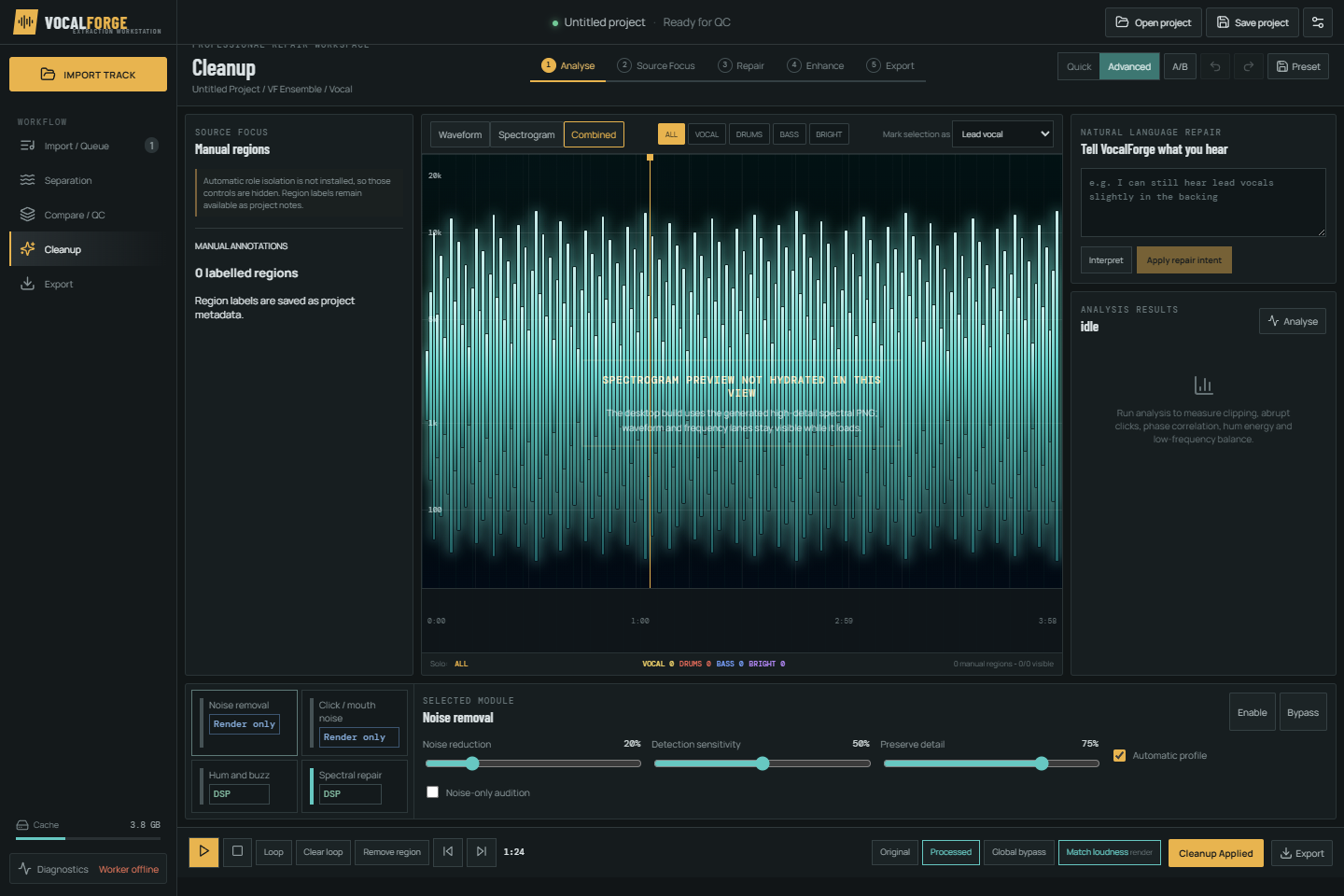
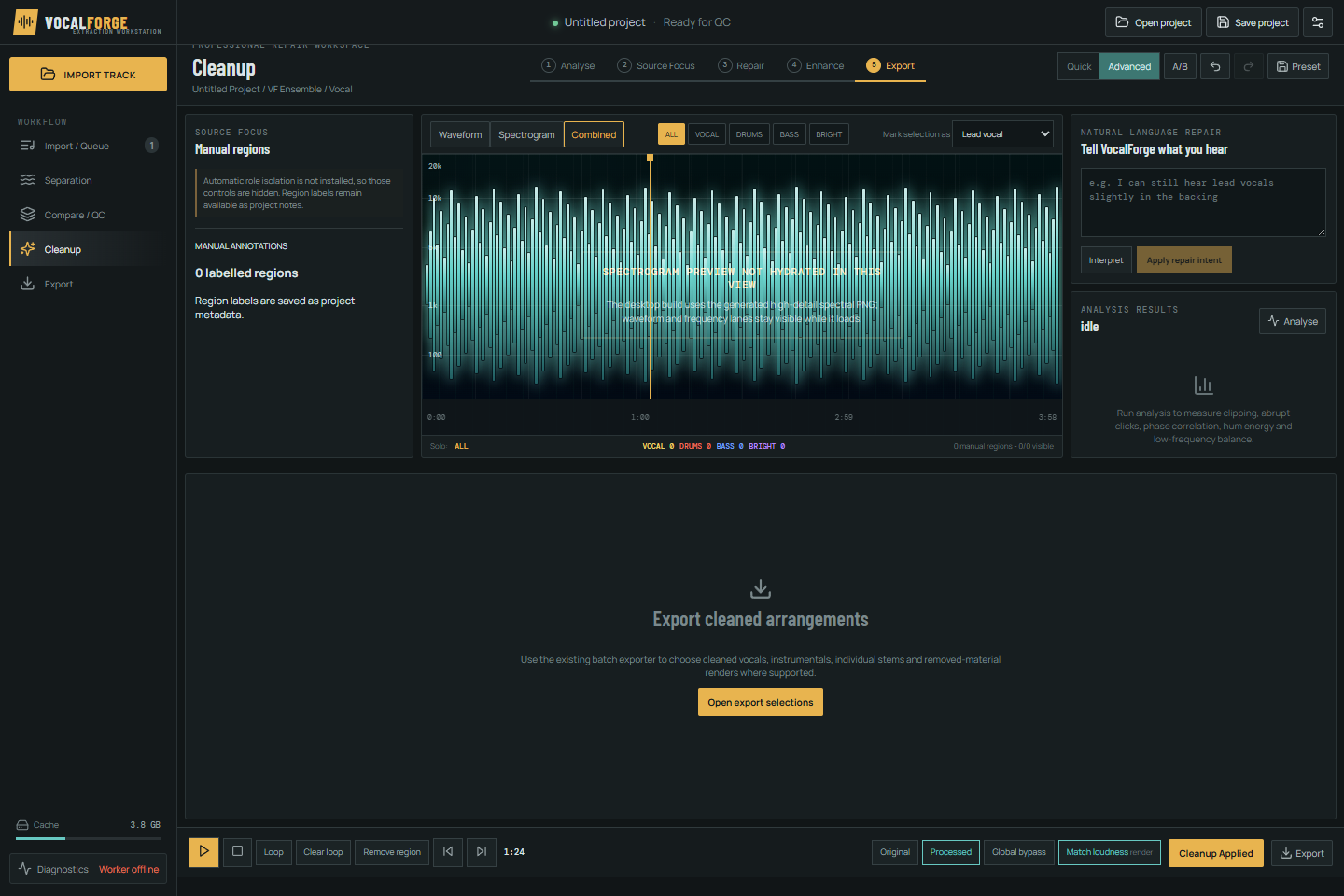
5. Cleanup
Cleanup is for controlled improvement after separation. Use it when you hear:
- lead bleed in backing vocals
- instrumental bleed in the lead vocal
- harshness or artefacts
- low-level vocal residue in the instrumental
- hum, hiss or spectral smear
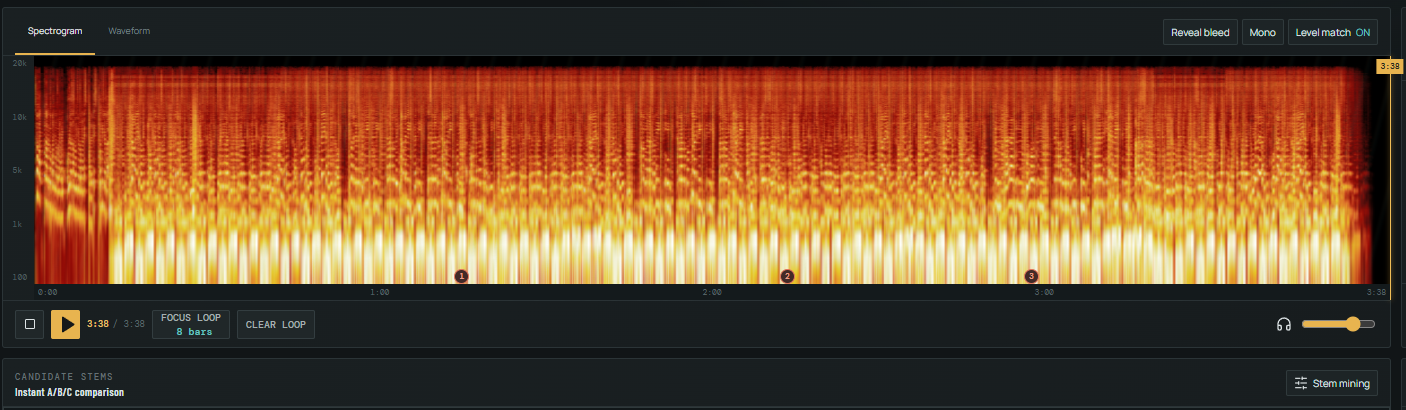
6. Spectrogram / Waveform
Use the visual workspace to inspect vocal regions, broadband material, drum energy and bright content. Spectrogram and waveform views help confirm where problem material lives before applying repair.
7. Export
Export the exact stem you auditioned. When enabled, manifests include candidate identity, stem identity, cleanup settings and QC/provenance information.
Screenshots
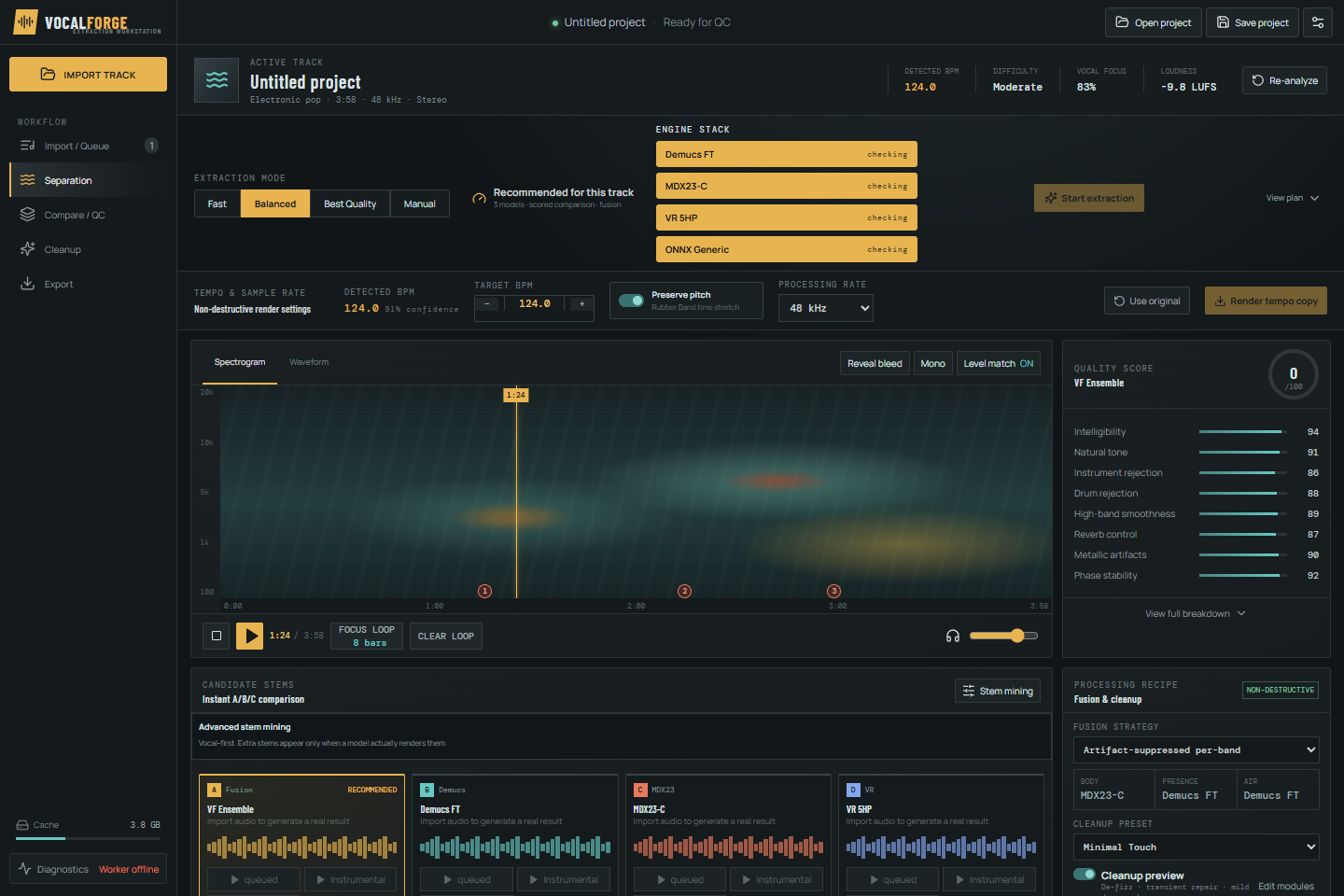
Workspace Overview
Candidate Stem Mining
Cleanup Workspace
Export Selection
Settings
Use Settings to control:
- licence/account state
- default workflow mode
- default sample rate
- default export format
- native playback preference
- RAM assist profile
- first-run machine optimiser
- model-pack readiness checks
- install readiness
- autosave cleanup
- About information
RAM profiles:
- Conservative: lower-powered systems.
- Balanced: recommended general use.
- Performance: high-memory systems.
- Custom: manually set a GB cap.
Workflow mode defaults:
- Simple: recommended for normal users and first-time sessions.
- Advanced: recommended when you need direct access to routing, mining and repair controls.
The custom RAM cap can be raised manually in Settings. VocalForge still applies a native safety ceiling based on currently available memory, so the effective cap may be lower than the requested cap.
System Requirements
Windows Minimum
- Windows 10 or Windows 11, 64-bit
- modern 64-bit CPU
- 16 GB RAM
- at least 5 GB free SSD space for the application and runtime, plus additional space for source audio, cache and exports
- internet connection for download, first activation and periodic licence checks
- GPU optional; unsupported or unavailable GPU routes fall back to compatible processing where available
macOS Minimum
- Apple Silicon Mac with M1 or newer processor
- macOS 13 Ventura or newer
- 16 GB unified memory
- at least 5 GB free SSD space for the application and runtime, plus additional space for source audio, cache and exports
- internet connection for download, first activation, model downloads and periodic licence checks
- Intel Macs are not supported by the 0.1.1 ARM64 DMG
Recommended Production System
- Windows 11 or a current supported macOS release
- 32 GB RAM or unified memory or higher
- fast internal SSD with at least 20 GB working space for active sessions, cache and exports
- Windows: supported NVIDIA CUDA GPU for accelerated routes
- macOS: recent Apple Silicon with Metal Performance Shaders support; Demucs can use MPS and retry on CPU, while MDX23, VR and generic ONNX use their validated CPU routes in 0.1.1
- studio monitoring or reliable headphones
Power Users
- 64 GB memory or higher, with manual RAM cap control available in Settings
- high-performance CUDA GPU on Windows or higher-tier Apple Silicon on macOS
- fast local scratch storage sized for multi-engine candidates and high-resolution exports
- suitable for multi-engine comparison, longer source files and heavier recovery routes
Actual processing speed and temporary storage use depend on track length, selected models, source format and the number of candidates retained.
About In The App
The in-app About card shows VocalForge, Sublab Ventures Ltd, build type, support contact, SVForge website/manual links and copyright information.
Licence Tiers
Trial:
- seven days from first activation
- core separation and preview
- useful for checking your own material
Standard:
- local separation
- basic cleanup
- preview/playback
- standard export
- BPM/sample-rate/tempo controls
- manifest export
Pro:
- everything in Standard
- backing-vocal recovery
- leadprint suppression
- lead-vocal bleed cleanup
- advanced repair workflow
- spectrogram tools
- QC/provenance reports
Studio / Commercial:
- everything in Pro
- commercial usage terms
- multi-device or room use
- priority support path
- extended offline grace where agreed
Troubleshooting
No playback:
- check selected stem
- check audio device
- try native playback
- refresh the app if the audio device changed
Backing vocals are quiet:
- use backing-vocal mining from the instrumental side
- try Find backing cue
- compare recovered vocal side and clean instrumental side
- avoid over-suppressing if the backing vocal is fragile
Lead vocal remains in backing:
- use leadprint suppression
- increase strength gradually
- compare clean and aggressive variants
- preserve backing musicality over maximum removal when possible
BPM seems wrong:
- use tempo controls manually if needed
- confirm the track is not half-time or double-time
- check live preview after changing BPM
Export is not what you expected:
- select and audition the exact stem first
- use export from the currently auditioned candidate
- include manifest/QC report for proof
macOS will not open VocalForge:
- confirm the Mac is Apple Silicon and is running macOS 13 or newer
- confirm the release ZIP came from the official SVForge download page and contains
VocalForge_0.1.1_aarch64.dmg - in System Settings > Privacy & Security, review the blocked-app message and use Open Anyway only for the verified VocalForge copy
- do not disable Gatekeeper globally
- contact support if the filename or published SHA-256 checksum does not match
macOS cannot access an audio file or folder:
- open System Settings > Privacy & Security > Files and Folders
- allow VocalForge access only to the locations needed for your sessions
- move the source to a user-owned Music or project folder if it is on a restricted or disconnected volume
Uninstalling
Windows users can remove VocalForge through Settings > Apps > Installed apps.
On macOS, quit VocalForge and move it from Applications to the Bin. If you also want to remove downloaded models, caches and logs, remove the audio.vocalforge.workstation folders from your user Library only after preserving any sessions or exports you still need. Uninstalling the app does not cancel a paid licence or subscription.
Support
For access, licensing, support or commercial use, contact Sublab Ventures:
Copyright (c) Sublab Ventures Ltd. All rights reserved.